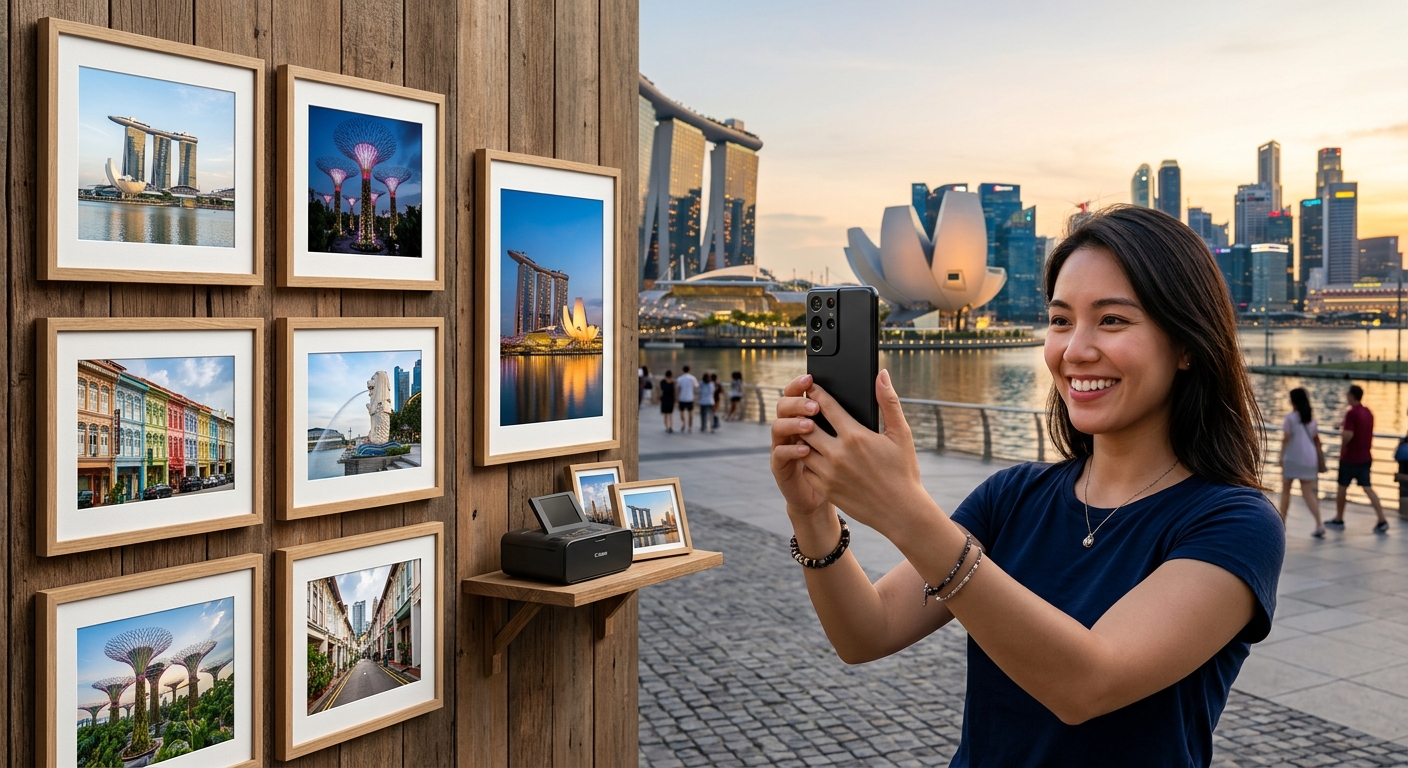
Your favourite hawker centre photo looks sharp on your phone. Then you print it, and the faces turn soft, the stall sign loses detail, and the shadows look muddy. A small screen can hide those problems. Choosing a camera phone for printing means looking beyond bright previews and large megapixel numbers. You need a camera that records clear detail in the places you actually photograph, from a family lunch to an evening walk through Chinatown.
Your Print-Ready Buying Brief: Prioritise a dependable main camera, effective optical stabilisation and natural detail under dim lighting. Judge original image files instead of showroom previews. Check how much resolution remains after cropping, especially for larger prints. A sharp everyday photo can be more useful than a huge file with smeared textures. Before buying, test moving subjects, bright signs and shadowed faces. Match your choice to the photos you take and the print sizes you want.
Start With the Photos You Want to Keep
Think about your recent camera roll before comparing specifications. Are most of your favourites food photos, family portraits or streets after sunset? Each puts different demands on a phone camera.
A plate of chicken rice stays still. Children at a hawker centre rarely do. An evening street scene might contain dark five-foot ways and brightly lit shopfronts in the same frame. A camera that handles one situation beautifully may struggle with another.
Decide how you expect to print those photographs. Small album prints need less resolution than a large framed image. Heavy cropping also changes your requirements. If you often photograph from across a street and crop later, useful telephoto performance deserves attention.
Set your budget around these needs. Extra camera modules have little value if you seldom use them. For many buyers, a reliable main camera matters more than a long list of shooting modes.
Read Sensor Specifications Beyond the Megapixel Count
Megapixels describe the number of pixels in an image. They do not tell you whether those pixels contain clean, useful detail. Lens quality, sensor size, focus accuracy and image processing all affect the result.
With other factors held constant, a larger sensor can collect more total light. That can help with dim scenes and smoother tonal transitions. Phones still depend heavily on their lenses and processing, though. Sensor size is a useful clue, rather than a guarantee.
Sensor specifications often use labels such as 1/1.3-inch or 1/1.56-inch. Within this naming system, the smaller denominator generally describes the larger sensor. These labels are historical format designations, rather than literal measurements of the sensor diagonal.
Check the specification for each camera separately. The main camera may have a much larger sensor than the ultrawide or telephoto camera. A strong main camera does not mean every zoom setting will produce the same quality.
Check What the Default Camera Mode Actually Saves
Many high-resolution sensors combine information from neighbouring pixels through pixel binning. A phone advertised with a 48-megapixel camera might save 12-megapixel images in its default mode. Other phones use different arrangements or output sizes.
This can be a sensible trade-off. The default mode may deliver cleaner shadows and more consistent results. The full-resolution setting can preserve extra fine detail in good light, but it may create larger files and respond more slowly.
Compare both modes using the same subject. Look at lettering, fabric and foliage. Choose the setting that records convincing detail, rather than assuming the larger file must be better.
Use Stabilisation to Protect Detail in Dim Light
Optical image stabilisation, usually shortened to OIS, compensates for some camera movement during exposure. Depending on the design, the lens or sensor moves to help steady the image.
That is useful when you photograph a stationary stall, a building or your dinner under modest lighting. Less camera shake can mean clearer edges and more readable details in a print.
Electronic image stabilisation works differently. It uses processing and may crop the frame, particularly for video. A specification that mentions video stabilisation does not automatically confirm optical stabilisation for still photographs. Check the exact camera module you plan to use.
OIS also cannot freeze your subject. A person turning their head can still blur while the background stays sharp. For family photographs, a camera that chooses an appropriate shutter speed and focuses reliably may matter as much as stabilisation.
During a test, photograph someone walking through the frame. Check their face and hands. This tells you more about everyday reliability than a perfectly still display object.
Judge Low-Light Photos Under Singapore’s Mixed Lighting
Hawker centres give camera phones a demanding test. Covered seating, bright stall lights and daylight from open sides can appear in one photograph. Different lamps can also give skin and food an unwanted colour cast.
Look for believable skin tones and visible texture. Rice should retain separate grains where the camera has enough detail to resolve them. Faces should not look waxy. Noise reduction can make an image appear tidy while removing the texture you hoped to print.
Evening street scenes test a different weakness. Bright signs may lose their lettering while darker areas become heavily processed. Check whether lit surfaces retain colour and whether shadows still contain useful detail.
Night mode often combines several exposures. It can work well for stationary scenes, but moving people may appear blurred or show ghosting. Take a regular photo and a night-mode photo of the same scene. Compare the people as carefully as the buildings.
A brighter image is not automatically a stronger photograph. Some night scenes look more convincing when the camera keeps their darker mood. Choose a phone whose processing suits the way you want those moments to look on paper.
Work Out How Much Resolution Survives a Crop
A photograph can have enough pixels for a large print before editing and too few afterwards. Cropping removes pixels along with unwanted surroundings. This makes the original file dimensions more useful than the megapixel figure on the box.
Consider a 4000 by 3000-pixel image, which contains 12 million pixels. Crop it to half its original width and half its original height, and you have 2000 by 1500 pixels left. That is three million pixels, or one quarter of the starting total.
Print resolution connects those remaining pixels to a physical size. Pixels per inch, or ppi, describes how densely the image pixels are placed on paper. Official guidance on print resolution identifies 300 ppi as a standard for high-quality prints.
At 300 ppi, a 4000 by 3000-pixel file produces approximately 33.9 by 25.4 cm. A 2000 by 1500-pixel crop produces approximately 16.9 by 12.7 cm at the same density. These figures assume no resampling, and they describe pixel density rather than a promise of sharpness.
Turning a favourite evening street photo into a custom poster makes this trade-off tangible. A larger piece of wall art spreads the available pixels across more paper. It may still look pleasing from across a room, but a tightly cropped file can look soft when viewed close up.
Aspect ratio matters too. A typical 4:3 phone photo does not fill a 3:2 print without cropping or borders. Leave some space around your subject when shooting. That gives you room to adjust the composition for a frame later.
Ask the print provider about its requirements for your chosen size and material. Enlarging a file through software can make it easier to print, but it cannot reliably recover detail lost to blur or missed focus.
Choose Zoom That Preserves the Details You Need
Digital zoom generally crops and processes the image. It can be useful, but it reduces your margin for further cropping. A dedicated telephoto camera may preserve more distant detail when the lighting and camera hardware support it.
Do not judge zoom only by its maximum advertised setting. Test the focal lengths you will actually use. A moderate telephoto view can help with portraits, architectural details and a scene across the road.
Dim conditions can change the result. Some phones switch from a telephoto module to a crop from the main camera when light is limited. Compare original files at the same zoom setting in daylight and indoors.
Check ultrawide photographs near the edges as well. Group portraits can show stretched faces, while building details may become softer towards the corners. Those weaknesses become easier to see in larger prints.
Test Your Shortlist With a Repeatable Routine
A showroom preview is only a starting point. Screen brightness, display colour settings and viewing size can flatter a photograph. Where testing is allowed, compare the original images on the same screen.
Begin with the main camera. Photograph a detailed subject in ordinary photo mode. Check focus, fine texture and the saved pixel dimensions.
Include movement. Photograph a consenting companion walking or turning their head. Look for sharp eyes, natural skin and consistent results across several attempts.
Test mixed brightness. Include a bright sign or window beside a darker subject. Check highlight detail and whether shadowed faces remain believable.
Repeat in dim light. Compare ordinary mode with night mode. Inspect moving subjects, colour casts and texture lost through processing.
Try your intended crop. Frame the image as you would for a print. Check the remaining dimensions and inspect whether the subject still holds useful detail.
If you cannot test outside the shop, seek downloadable original sample files from reviews. Use comparable scenes and lighting where possible. Social media images may have been resized, compressed or edited, which limits their value for judging print quality.
Keep the Original File Ready for Printing
A capable camera phone is only part of the process. Preserve the full-resolution original when transferring photographs. Messaging apps may compress shared images, depending on their settings. A screenshot also captures the displayed image rather than preserving the original camera file.
Check whether your chosen printing service accepts the phone’s image format. JPEG is widely supported, while HEIF compatibility varies. Keep the original even if you export another format for ordering.
RAW capture can offer more editing flexibility, but it needs processing and uses additional storage. It is useful if you enjoy editing. It should not be a requirement for getting pleasing everyday prints.
Edit with restraint. Heavy sharpening can create outlines around buildings and faces. Aggressive shadow adjustments can reveal noise. For a large or meaningful print, order a smaller proof first to judge colour and brightness on the chosen paper.
Buy for the Moments You Will Frame
The right camera phone is the one that produces dependable files from your actual life. For hawker lunches and family outings, favour reliable focus, natural skin tones and controlled motion blur. For evening streets, look for effective stabilisation, retained highlights and convincing shadow detail.
Pay extra for higher resolution or a telephoto camera when your cropping habits and print plans justify it. A sharp photograph with modest dimensions can make a lovely print. A much larger file with blurred faces cannot solve the same problem.
Before buying, choose three photographs you wish you had printed. Use those scenes to guide your camera tests. That gives you a clear reason to select one phone over another, and a better chance of bringing home images you will want on your walls.