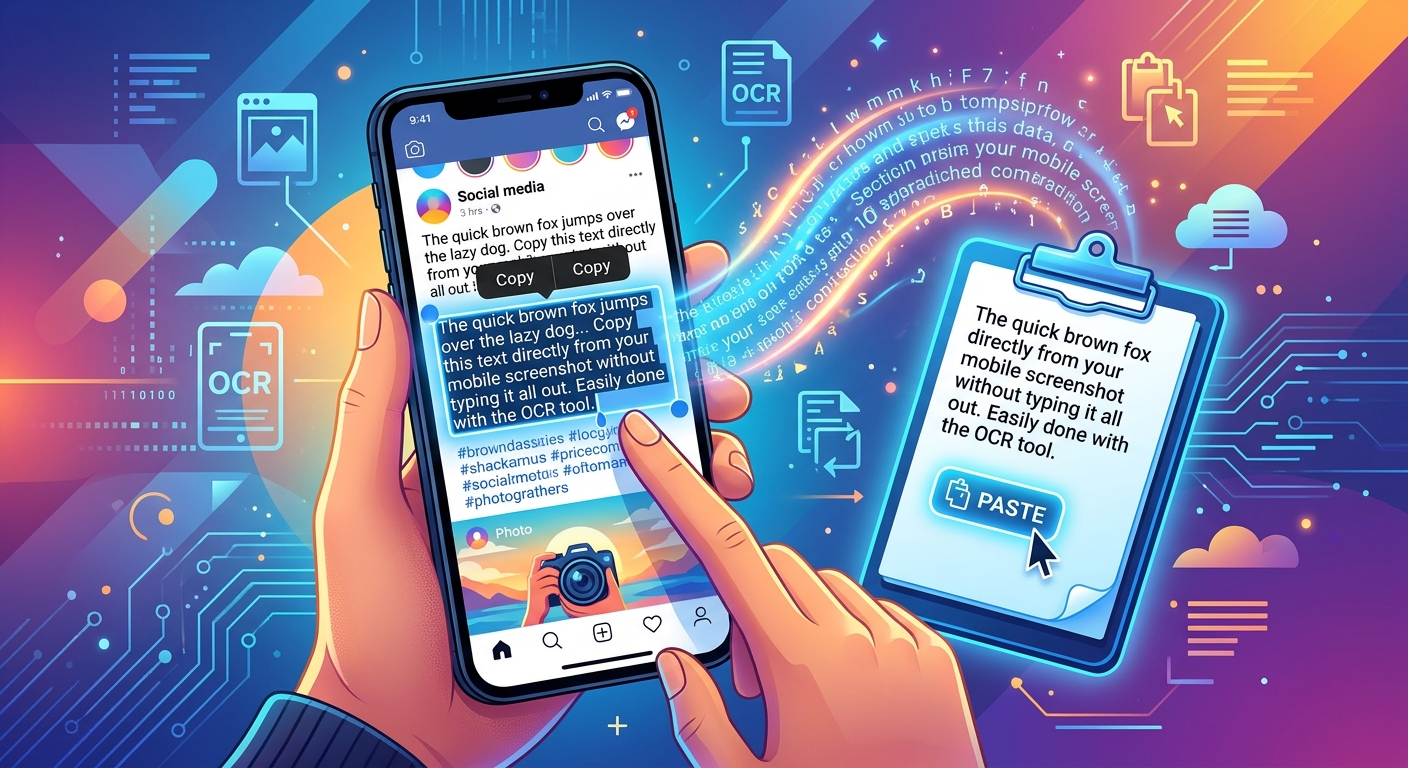
A screenshot saves the information you need, then leaves it trapped inside an image. Your collection reference, delivery instructions or mobile plan details are right there, but you cannot paste them into a message. Retyping feels manageable until a long code contains both zeroes and the letter O. A careful text extraction workflow can save time while helping you avoid mistakes.
The process starts before you tap any text recognition button. Keep a clear source image, remove private areas from the copy you intend to process, and extract only what you need. Then compare the result with the original. For Singapore users handling collection details, telco offers or purchase receipts, those small checks can prevent an inconvenient mix-up.
Your Screenshot Copying Checklist
- Crop private panels from a separate copy before processing.
- Keep the remaining text at its original pixel dimensions.
- Check punctuation, codes and numbers against the source.
Start With the Original Screenshot
Use the screenshot saved on your phone whenever possible. A copy downloaded from a chat may have been resized or compressed. Small interface labels can become harder to read, particularly when thin strokes or closely spaced characters lose definition.
Open the image in your gallery and enlarge the area you need. Check whether the smallest text is readable. If it already looks blurred, text recognition has less useful detail to work with. Enlarging the display helps you inspect it, but does not restore missing image detail.
If you still have access to the app or webpage, consider taking a fresh screenshot. Wait until loading indicators disappear. Close any temporary notification covering the text. Where the interface allows it, increase its text size before capturing again. Check the new image to make sure labels and values have not been cut off.
Optical character recognition, usually called OCR, identifies text within an image and turns it into editable characters. Treat its output as a draft. A result can look fluent while containing a wrong digit, missing bracket or misplaced decimal point.
Crop Private Panels Before You Process Anything
A screenshot often contains more information than the line you want to copy. A collection reference might sit below your name and phone number. A telco account screen might show an address above a plan description. Notification banners can expose message previews without you noticing them.
Make a separate copy for extraction. Keep the original available for checking, then crop the working copy tightly enough to exclude unrelated panels. Leave a little space around the required text. Cutting too close can remove a punctuation mark or the edge of a character.
Review the entire cropped image before opening another tool. Pay attention to details outside the central panel, including information near the screen edges.
- Remove names, addresses and contact details that the task does not require.
- Exclude account balances, payment details and unrelated transaction records.
- Crop out notification previews, profile pictures and private conversation fragments.
- Remove unrelated barcodes and QR codes, which may contain information beyond their visible labels.
Cropping is particularly useful when the private content occupies a separate area. If sensitive details run through the text you need, another capture may be easier to prepare safely. Avoid relying on a translucent marker or blur that leaves characters readable. Inspect the saved result itself, rather than assuming the editing preview reflects what another app will receive.
Before using an online service, check its current information about uploads, storage and deletion. If those details do not suit the material, use a suitable on-device option or avoid processing that image through the service.
Preserve Resolution Without Keeping Unnecessary Content
Cropping and resizing are different actions. Cropping removes the surrounding image area. Resizing changes the pixel dimensions of what remains. You can remove a private panel while retaining the original detail in the text you intend to extract.
In your editor, avoid choosing a smaller export size. Save the crop without reducing its dimensions where that option is available. An image does not need to fill the screen to contain enough detail. A narrow crop of a reference number can still retain every original pixel in that region.
Avoid taking a screenshot of the screenshot preview. That adds another capture step and may record a scaled version of the image. Use the saved file directly. If you need to move it between devices, choose a transfer method that preserves the original file rather than sending a reduced image preview.
How Image Preparation Affects Text Extraction
| Image Preparation | Effect on the Text | Best Use |
|---|---|---|
| Crop without resizing | Removes surrounding content while retaining detail in the selected area. | Isolating a message, reference or settings panel. |
| Reduce image dimensions | Can lose detail in small characters and punctuation. | Creating a smaller sharing copy after extraction and checking. |
| Capture the preview again | May replace original detail with a scaled screen rendering. | Avoid this when the original file is available. |
| Take a fresh source capture | Can provide clearer text if the interface is readable and unobstructed. | Replacing a blurred, incomplete or heavily compressed copy. |
Extract One Interface Section at a Time
Check whether your phone's image viewer offers text selection or recognition. Availability and controls vary by device, software version and language. Open the prepared image and look for a text selection control. If one is available, select the required passage and copy it into a note for review.
If you choose a browser-based route, you can process screenshot text using the cropped working image. Review the service's current instructions and privacy information before submitting anything sensitive. Copy the extracted result into an editable note rather than sending it straight to its final destination.
Busy interfaces benefit from smaller selections. A settings screen may place labels on the left and values on the right. A shopping screen may combine a price, discount, quantity and delivery fee. Extracting everything at once can leave the reading order unclear.
Work on one panel at a time. Keep the label beside its value where possible. Copying “100” without “GB” or “minutes” removes the context that makes the number useful. If the output merges several rows, separate them in your note while the screenshot remains open.
Check Punctuation Before You Trust the Sentence
Read the extracted text against the image line by line. Start with punctuation because small marks are easy to overlook. A missing full stop may be harmless in a casual message. A missing decimal point in a price changes the meaning.
Check commas, colons, brackets, slashes and apostrophes. Pay attention to text at line endings, where a symbol may have been clipped during cropping. Web addresses and email addresses need careful checking because one wrong character can make them unusable.
Do not tidy the wording before checking accuracy. Auto-correction and manual edits can make a sentence sound natural while moving it further from the source. Establish what the screenshot says first. Adjust the presentation afterwards if your task allows it.
Give Codes and Numbers a Separate Check
Codes deserve a slower pass because they do not provide much context. A sentence may make a misread word obvious. A collection reference offers fewer clues. Compare it character by character, including its capital letters and separators.
- Check zero against uppercase O, and one against uppercase I or lowercase l.
- Count characters in booking references, order identifiers and collection codes.
- Verify decimal points, currency symbols, percentage signs and negative signs.
- Keep units attached to values, including GB, Mbps, minutes and months.
- Read dates and times in their original format before rewriting them.
For example, a fictional reference reading “SG0I18” contains several characters that can be confused at a glance. Enlarge that part of the original and compare each position. Avoid guessing from what a code usually looks like.
For a mobile plan screenshot, check the monthly fee, data allowance and contract duration independently. A correct price paired with the wrong plan row still produces an inaccurate note. Promotional qualifiers also matter. Keep wording about eligibility, introductory periods or additional charges attached to the offer it describes.
If a character remains unreadable, return to the original app, message or document where possible. A fresh source view is more useful than repeatedly processing the same blurred pixels.
Paste, Inspect and Keep the Source Nearby
Once the text matches, paste it into its intended destination and inspect it again. A form may remove spaces. A spreadsheet may change a date or drop a leading zero. A messaging app may alter line breaks. The final pasted version needs to preserve the details your recipient or next step requires.
For a reference code, check the first and last characters after pasting. For a price, check the currency and decimal places. For instructions, confirm that every relevant line arrived. This final look takes little time compared with correcting an error after submission.
Keep the original screenshot until the task is complete. If you are comparing phone offers, retain enough context to identify which offer each extracted note belongs to. A short label in your private notes can prevent figures from different screenshots becoming mixed together.
Leave the Retyping Behind, Keep the Checking
Copying text from a screenshot works best as a small, repeatable habit. Start with the original image. Crop private panels from a separate copy. Preserve the detail in the remaining text, then extract a manageable section.
The last step belongs to you. Compare punctuation, codes and numbers with the screenshot before using them. That turns a convenient text capture into something you can confidently paste into a message, note or form.