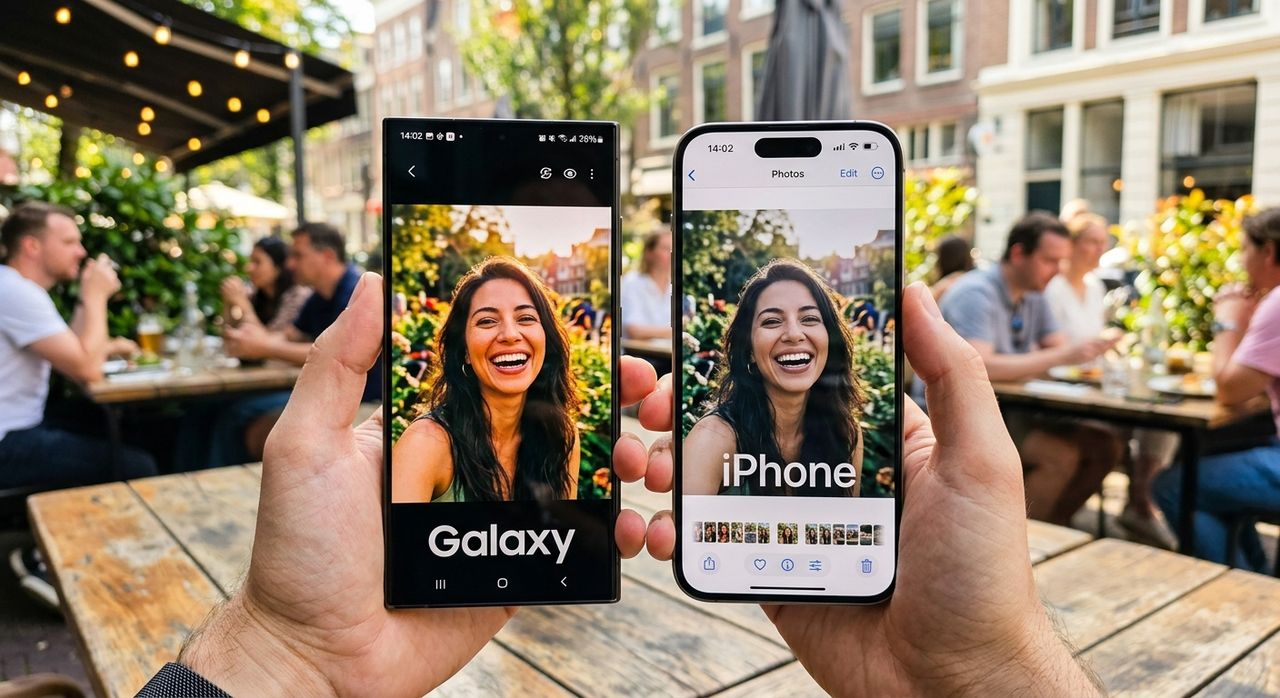
Switching to an iPhone is easy. Sharing photos from that iPhone to anyone outside the Apple ecosystem is where things get complicated. The camera produces stunning images, but the file format it saves them in is one that Android devices, most web upload forms, and plenty of messaging apps simply cannot handle. You end up with photos that look perfect on your iPhone and completely broken everywhere else. That gap has a name and a fix, and neither one requires touching your phone settings.
iPhone photos break outside Apple because of a format mismatch, not a quality issue.
- iPhones save photos as HEIC by default, a format that Android and most web services cannot open natively.
- HEIC cuts file sizes roughly in half compared to JPEG, but that efficiency comes at the cost of universal compatibility.
- Converting HEIC files to JPG before sharing resolves the problem without changing anything on your iPhone.
What the iPhone Is Actually Saving When You Take a Photo
For decades, JPEG was the universal format for digital photos. It launched in the early 1990s and became the baseline that every camera, phone, printer, and website agreed on. When Apple released iOS 11 in 2017, it quietly changed the iPhone's default from JPEG to HEIC, a decision most users didn't notice until something stopped working.
HEIC stands for High Efficiency Image Container. It is built on HEIF, a standard developed by the Moving Picture Experts Group to compress images more aggressively than JPEG without a visible drop in quality. In practical terms, a HEIC photo typically takes up about half the storage space of an equivalent JPEG. For Apple, that was a compelling reason to switch. iPhones have fixed storage, and halving the size of every photo means more room for everything else.
Inside Apple's ecosystem, HEIC works seamlessly. Every Apple device reads and writes it without friction. The problem only starts when a photo leaves that ecosystem.
Where HEIC Stops Working
Android does not support HEIC natively. That is not a flaw, it is simply a different engineering choice. Android was built around JPEG as the default, and the tools, apps, and systems in that ecosystem expect JPEG files. When a HEIC photo arrives on an Android device, what happens next depends entirely on the app receiving it.
Some messaging apps attempt to convert the file on the fly. Others display a broken thumbnail. Some show nothing at all. There is no consistent behavior, and you usually cannot predict what the recipient will see until they tell you it didn't work.
Beyond Android, HEIC compatibility issues show up across a wide range of everyday situations:
- Web upload forms that only accept JPG or PNG files
- Email attachments opened on Windows computers without the HEIC codec installed
- Google Drive previews that fail to render the image
- Social media platforms that re-encode the file in ways that degrade quality
- Business and government portals that flag unknown file types and reject the upload entirely
The Storage Win You Got Without Knowing the Cost
Apple's decision to switch to HEIC made perfect sense for users who live entirely inside the Apple world. If you send photos through iMessage, edit them in Photos, print them through an Apple-compatible service, or share them via AirDrop to another iPhone, you will never notice a problem. The format is invisible.
The issue is that daily photo sharing rarely stays within a single ecosystem, especially in a market like Singapore where Android devices hold a strong presence. You send photos to family members on Samsung or Oppo phones, share images with a client using a Windows laptop, or upload product photos to a web marketplace. Each of those situations is a potential friction point.
Changing the iPhone Setting Versus Not Changing It
Apple does give you a way to stop the phone from saving in HEIC. You can go into Settings, tap Camera, select Formats, and switch from High Efficiency to Most Compatible. This forces the camera to save standard JPEG files for every photo you take going forward.
The downside is straightforward. You immediately lose the storage savings that make HEIC worthwhile. Every photo now takes up roughly twice as much space. If you shoot a lot of photos, that difference adds up fast. And it is a setting you have to consciously change and manage, including deciding whether to switch back if storage becomes a concern.
The alternative is to leave the iPhone doing what it does best, saving small HEIC files, and handle the format conversion only when you need to send a photo somewhere that requires JPG.
Here is how that workflow looks in practice:
- Take photos normally on your iPhone. Let them save as HEIC. Do nothing different.
- When you need to share a photo somewhere that won't accept HEIC, transfer the file to a browser.
- Upload it to a HEIC to JPG converter and download the output.
- Share the resulting JPG file through whatever channel you need.
The conversion adds under a minute to a task you were already doing. You keep the storage efficiency on your phone every day and only pay the conversion cost when a specific share actually requires it.
Why Automatic Conversion Is Not Reliable
Apple does include some automatic HEIC-to-JPEG conversion in iOS. When you email a photo directly from the Photos app, iOS sometimes converts it before sending. AirDropping to a non-Apple device can trigger a similar conversion in certain configurations.
The critical word is sometimes. The automatic behavior depends on the app you are using, the destination device, the iOS version on your phone, and how the receiving system identifies itself. Third-party messaging apps, browser-based upload fields, and any sharing method that bypasses Apple's own apps may receive the raw HEIC file regardless of what iOS intended to do.
That inconsistency is exactly why manual conversion is more dependable. You know the format before the file leaves your hands.
Making Your iPhone Camera Work Everywhere It Needs To
HEIC is not a temporary format that Apple will abandon. It is efficient, it supports advanced color data, and more platforms are slowly adding support for it as time goes on. But that adoption takes years, and the practical gap between iPhone camera output and what the rest of the world can open is very real today.
Permanently switching your camera to JPEG trades a daily cost, storage space, for a problem you only hit occasionally. Converting selectively gives you the storage benefit on every photo and the compatibility benefit only when you need it. Your iPhone stays unchanged, your camera roll stays lean, and your photos land correctly wherever they need to go.
The format difference between iPhone and Android camera output is a genuine friction point for anyone who crosses platforms regularly. But it is also one of the more solvable problems you will run into as an iPhone user. No setting changes, no new apps, no compromises on how you use your camera.