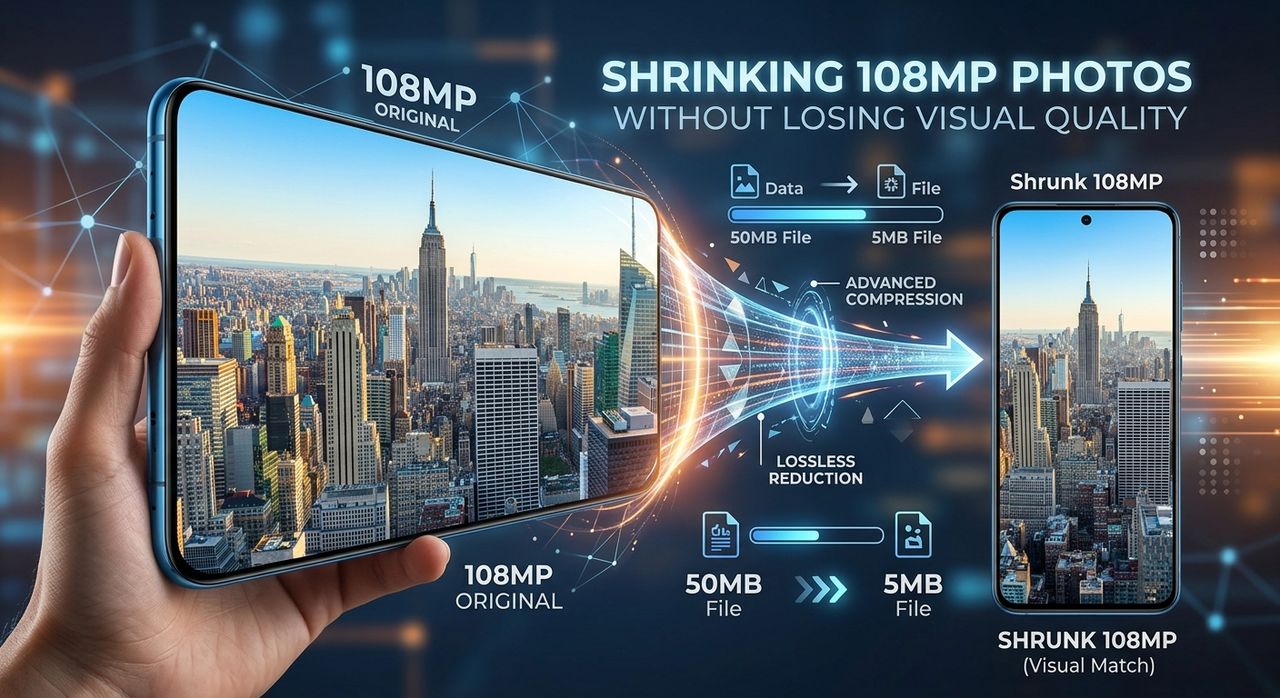
Phone specs keep climbing. A few years ago, 12MP felt like plenty for most people. Today you can pick up a mid-range handset packing a 50MP, 108MP, or even 200MP sensor right out of the box. That sounds impressive until you check your storage after a weekend trip and find it nearly full, with only a couple hundred photos to show for it. Each raw JPG from a high-resolution sensor can weigh between 10 and 20 megabytes. Multiply that by a full camera roll, and the math stops being fun.
Modern smartphone sensors are producing files far larger than most users ever need to share.
- A single 108MP photo can reach 15MB, filling a 128GB phone with fewer than 9,000 shots before storage runs out.
- Compressing photos before sharing cuts upload time and mobile data costs without any visible quality loss on screen.
- Understanding the difference between screen PPI and print DPI helps you export at the right size for every purpose.
Why Smartphone Sensors Keep Getting Bigger
Camera sensors are measured in megapixels, where one megapixel equals one million individual pixels. A 108MP sensor captures roughly 108 million pixels per frame. That level of detail sounds extraordinary, and in the right conditions it genuinely is. You can crop aggressively, zoom into a scene after the fact, or print at enormous sizes and still retain crisp, sharp edges.
The push toward higher megapixel counts started with smartphone manufacturers competing on paper specifications. Buyers respond to bigger numbers, so brands began shipping 48MP, 64MP, and eventually 108MP cameras as standard features rather than premium extras. According to the Wikipedia article on image resolution, resolution and perceived sharpness are related but not identical. Lens quality, sensor size, and processing algorithms play equally important roles in how a photo actually looks.
The result is that most people carrying a 108MP phone are producing files far larger than they actually need for how they plan to use those images.
The Real Storage and Data Cost of High-Resolution Files
Here is where the practical problem begins. A 108MP photo saved as a JPG at default quality settings typically lands between 10 and 15 megabytes per image. Some phones push closer to 20MB in high-quality modes. That is roughly five to ten times larger than what a well-compressed image of the same scene needs to be.
Those file sizes create friction across the board. Storage fills up faster than expected. A 128GB phone sounds spacious until 50GB is already occupied by apps, videos, and music. At 15MB per photo, you reach the limit well before the phone feels full on any other metric.
Uploading to social media, messaging apps, or cloud services also takes longer and consumes more mobile data. On a limited data plan, sending a dozen uncompressed photos in a group chat can eat through a noticeable chunk of your monthly allowance. Platforms like Instagram and Facebook recompress your images anyway when you upload them. That means you bear the upload cost of a 15MB file, and the platform reduces it to around 2MB on their end. You paid the data price for resolution that disappeared in transit.
Megapixels vs. What You Actually See on Screen
This is where the conversation gets interesting, because the megapixel count on the box does not translate directly into a better-looking photo on a phone screen or Instagram feed.
Screens measure sharpness in pixels per inch, abbreviated PPI. Most smartphone displays run between 400 and 500 PPI. A standard 1080p Full HD screen contains roughly 2 million pixels total, which means a 108MP photo is capturing about 54 times more data than the screen can actually display at full size. The extra resolution is invisible to the naked eye at normal viewing distances.
Where resolution genuinely matters is in print. Printed materials are measured in dots per inch (DPI), and professional print work typically requires 300 DPI. A 108MP sensor can produce a print well over a meter wide at full quality. But for social media sharing, a well-compressed photo at a fraction of the original size is indistinguishable from the uncompressed original on any screen. Running your image through a DPI converter lets you calculate the exact output dimensions needed for a specific print size or display target, so you stop guessing and start exporting at specs that actually match your intended use.
The gap between screen PPI and print DPI trips up a lot of people. They assume that more megapixels automatically means better-looking social posts. In practice, a 12MP photo compressed and exported correctly looks identical on Instagram to its 108MP counterpart, and it uploads several times faster.
Screen vs. Print: How Resolution Requirements Compare
| Use Case | Pixels Needed | Typical File Size | Why It Matters |
|---|---|---|---|
| Social media post | 1080 x 1080 | 200 to 500 KB | Platforms recompress on upload |
| WhatsApp photo share | 2 to 4MP | 500 KB to 1 MB | Receiver screen limits visible detail |
| A4 print at 300 DPI | 8 to 12MP | 3 to 8 MB | Requires accurate DPI settings |
| Large format print | 50MP or more | 15 to 25 MB | Only case where 108MP genuinely shines |
How JPEG Compression Actually Works
JPEG compression, developed by the Joint Photographic Experts Group, works by grouping pixels into blocks and discarding fine detail that the human visual system is less sensitive to. At moderate compression levels, the eye cannot detect the difference between the compressed and original version when viewed on a standard screen. At aggressive levels, blocky artifacts start appearing around high-contrast edges and in areas with fine texture.
The key insight is that moderate compression, roughly quality levels between 70 and 85 percent in most editing tools, strips away a large percentage of file size while leaving the visible image essentially unchanged. Going from a 15MB file to a 2MB file at 80 percent quality is nearly invisible in normal use. Going all the way down to 200KB is where artifacts start becoming noticeable.
A Practical Workflow for Sharing High-Res Phone Photos
Getting from a raw 108MP shot to a share-ready image does not need to be complicated. Here is a sensible order of operations that works for most situations:
- Shoot in the highest resolution your phone offers, so you always have the full-detail original stored locally.
- Before sharing, decide on the destination: social media, a messaging app, email, or print.
- For digital sharing, resize to a maximum of 2000 to 3000 pixels on the long edge. That is more than enough for any screen at any viewing distance.
- Apply compression using a reliable tool that lets you control output quality. Tools like compress JPG let you adjust quality level and preview the result side by side before downloading, which takes the guesswork out of the process.
- Check the output file size before sending. For social media and messaging, aim for under 1MB. For email attachments, under 2MB. For print, use your DPI-adjusted dimensions instead of eyeballing it.
- Keep the original high-resolution file in cloud storage or on an external drive, separate from your phone's camera roll.
This approach gives you the best outcome in both situations. Your originals stay pristine for any future use, and your shared versions are lean, fast-uploading, and visually identical to the uncompressed files on any screen the recipient is likely to use.
Common Habits That Inflate File Sizes Unnecessarily
A few patterns lead people to share files far heavier than necessary, and they are easy to fix once you recognize them.
Saving back to the camera roll after editing is one common trap. Apps like Lightroom Mobile or Snapseed can re-export at full resolution by default, even after a simple brightness tweak, adding unnecessary size back to a photo you may have already optimized.
Sending photos as email attachments without choosing a size option is another. Most mobile email clients offer a choice between actual size and a smaller compressed version at send time. Choosing the smaller option is almost always the right call unless the recipient explicitly needs the original for printing or archiving.
Ignoring the camera app's own resolution settings is the third habit worth revisiting. Many high-megapixel phones offer a binned mode alongside the full sensor output. In binned mode, the camera combines neighboring pixels to produce a lower-resolution but cleaner image, particularly in low light. For everyday snapshots, the binned output is often sharper in challenging lighting and produces files one-fifth the size of the full-resolution alternative.
Your Photos, Your Storage, Your Data Bill
The megapixel count is not the problem. High-resolution sensors give you real creative flexibility, from aggressive cropping to large-format printing to post-capture zooming on a desktop. The issue is treating those large files as the final product for every single use case.
Most photos shared on social media, sent through a messaging app, or attached to an email do not need to carry all that weight. Screen resolution caps how much detail anyone can actually see. Upload speeds reward smaller files. Mobile data plans penalize waste. Getting into the habit of compressing before sharing costs almost nothing in visible quality and saves a meaningful amount in storage space, upload time, and data consumption over the long run.
The tools to do this well are straightforward. Understanding the difference between screen PPI and print DPI gives you sensible targets. A compression workflow handles the rest. Your 108MP camera is doing its job every time you press the shutter. Sharing smart is the other half of that process.